Download
Maximum VPN on Google Play
The official Maximum VPN app on Google Play
Instructions
1
Install the app from Google Play
Tap the card above or search for “Maximum VPN” in Google Play. Tap Install and wait for the download to complete.
2
Sign in to your account
Open the app and enter the email and password of your Maximum VPN account — the same ones you use in the dashboard. Then tap Sign in.If you registered via Google, tap Continue with Google. No account yet — tap Create account at the bottom of the screen. Forgot your password — there is a “Forgot password?” link next to the field.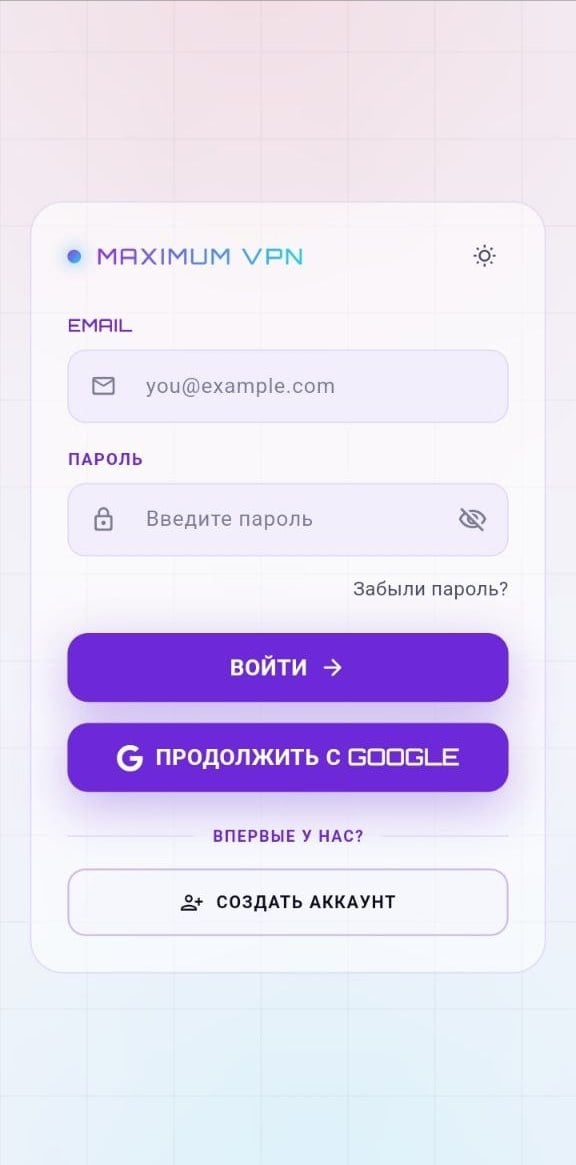
Nothing to copy and paste. Once you are signed in, the app fetches the list of servers available to your account by itself.
3
Choose your region
On first launch a “Where are you located?” dialog appears with two options: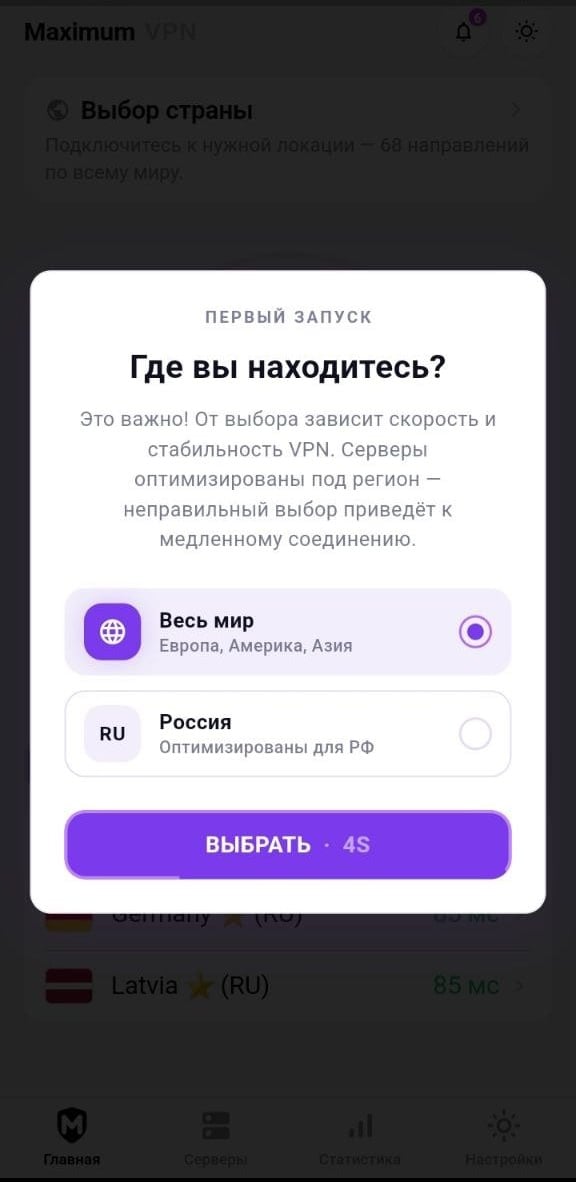
Pick the one you need and tap Select. The button has a countdown — if you do not touch anything, the default option is applied. You can change the region later in settings.
The region determines which servers the app treats as primary. Choose the one where you actually are.
4
Connect
After you pick a region, the Home tab opens with a country selection block that takes you straight to the locations. Start the connection and wait for it to come up.
On first connection, Android will show a system VPN permission request. This is standard — tap OK.
5
Pick a server manually (optional)
Open the Servers tab in the bottom navigation. At the top there is a separate Automatic server block — the app picks a suitable one for you. Below it is the list of countries grouped by region, each with its ping in milliseconds.There is a search by country or code, and the star on the right adds a location to favourites so you do not have to look for it every time.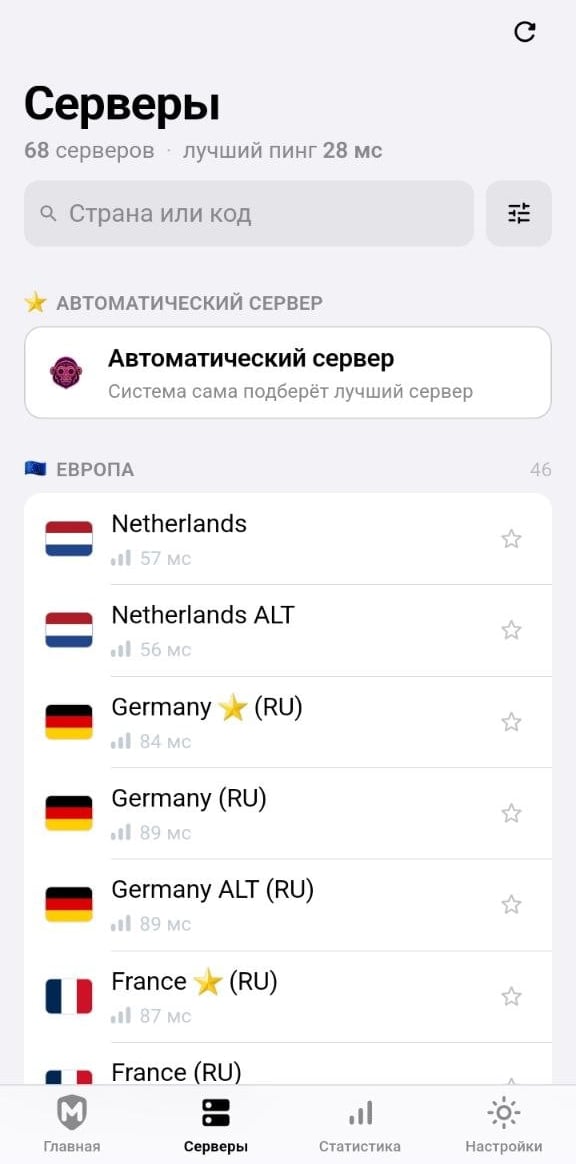
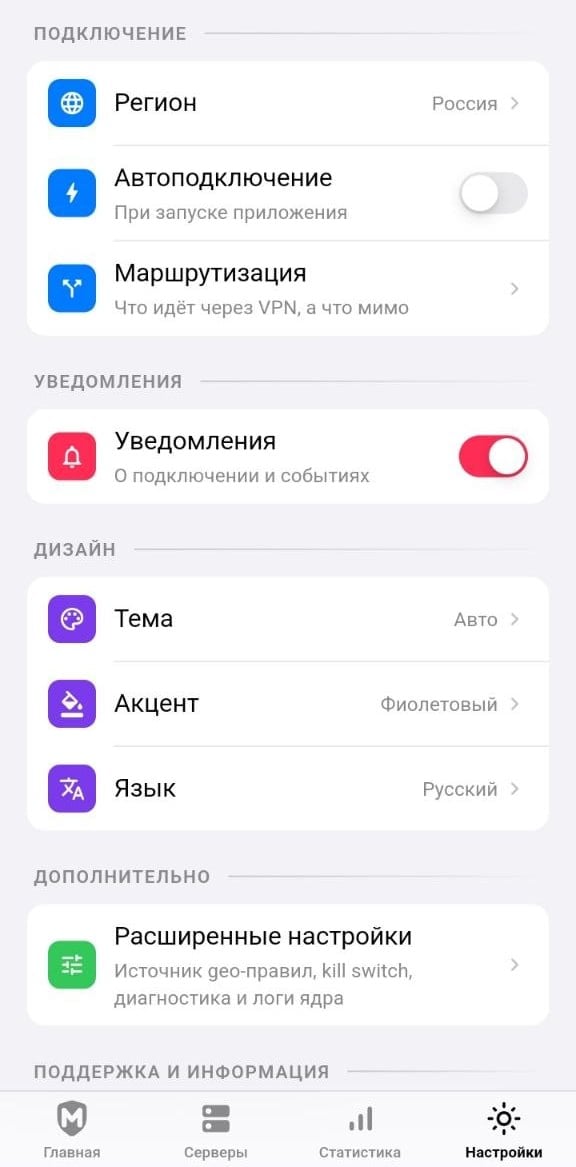
Settings
The Settings tab in the bottom navigation holds everything you can tune:Connection
Region — change the one you picked on first launch. Auto-connect — turn the VPN on when the app starts. Routing — what goes through the VPN and what bypasses it.
Notifications
Messages about the connection and other events. One toggle turns them off.
Appearance
Theme (including automatic), Accent — interface colour, Language — Russian or English.
Advanced settings
Geo-rules source, kill switch, diagnostics, and core logs — for anyone who wants to set things up by hand.